WordPress Admin Login: Access Your Site and Fix Lockouts
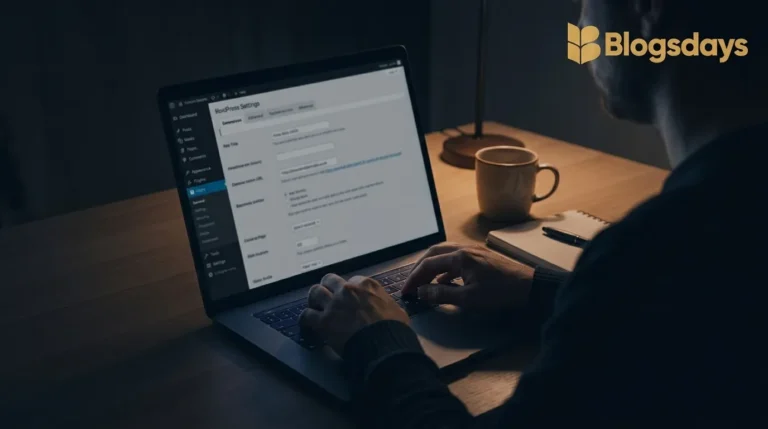
WordPress admin login lets authorized users access a website’s dashboard to manage content and settings. On a standard installation, add /wp-login.php to the site’s installation address to open the login screen. The /wp-admin/ path opens the dashboard if you already have a valid session; otherwise, it normally sends you to sign in.
If access fails, identify what is missing first: the login address, password, verification code or a working login page. Each problem needs a different fix.
What does WordPress admin login give you access to?
Logging in confirms your identity. Your account’s role and capabilities determine what you can do afterward.
| Default role | Typical access |
|---|---|
| Administrator | Manage a single site’s settings, users, plugins and content |
| Editor | Manage and publish content, including other authors’ posts |
| Author | Write and publish their own posts |
| Contributor | Write posts for review |
| Subscriber | Manage basic profile information |
Custom configurations can change these permissions. Multisite networks also have a separate Super Admin role.
A successful WordPress admin login does not automatically grant administrator privileges. If you can sign in but cannot see Plugins or Settings, ask the site owner to check your role instead of repeatedly resetting your password.
The official WordPress roles and capabilities documentation explains these distinctions.
Does logging out take the website offline?
No. Public pages normally remain available when you log out. You lose access to protected dashboard actions, not the ability to keep published content online.
Private sites, membership areas and unpublished content may require authentication. Those restrictions depend on the website’s configuration.
Where is your WordPress login page?
The correct WordPress admin login address depends on where WordPress is installed.
| Installation | Path to check |
|---|---|
| At the main domain | Add /wp-login.php after the domain |
| Inside a folder | Add /wp-login.php after that folder’s path |
| On a subdomain | Use that subdomain, followed by /wp-login.php |
| Custom login configuration | Use the address configured by the owner or security system |
For example, an installation in /blog/ normally uses /blog/wp-login.php.
Use the installation address, which may differ from the public homepage address. Check your installation records or hosting dashboard if you are unsure. Our WordPress installation guide explains how hosting installers organize a site.
Before entering credentials, verify the domain and HTTPS connection. Bookmark the confirmed page rather than repeatedly finding it through search results.
WordPress.com is a separate account system
A self-hosted site does not necessarily use your WordPress.com credentials. A WordPress.org account is also not automatically your website’s administrator account.
Identify which service manages your site before starting recovery. See our explanation of WordPress.com versus self-hosted WordPress if the distinction is unclear.
How do you complete a normal WordPress admin login?
- Open the confirmed login page.
- Enter the account’s username or email address.
- Enter its password.
- Complete any configured verification step.
- Confirm that you reached the intended website’s dashboard.
Use “Remember Me” only on a device you trust. It maintains a longer-lived session; it does not replace a password manager or recovery method.
Check the site name before editing. A staging installation and live website can have nearly identical dashboards.
Forgot your password? Reset it before changing files
For a forgotten WordPress admin login password, start with the login page’s “Lost your password?” link.
Enter the username or email associated with your account, then follow the reset message. Choose a new, unique password and store it securely.
What if the reset email does not arrive?
Check these possibilities in order:
| Check | Why it matters |
|---|---|
| Spam, junk and filtered folders | The message may have been diverted |
| Correct account and website | Different installations can have different users |
| Access to the registered mailbox | A valid reset message is useless if you cannot read it |
| An existing administrator | They may be able to help recover your account |
| Website email delivery | The site may not be sending mail correctly |
Avoid requesting reset links repeatedly while troubleshooting. Use the latest valid message and contact support if delivery remains broken.
The official WordPress password-reset instructions document recovery options. A missing email does not mean you need to reinstall WordPress.
What if you forgot the username, email or login address?
These are separate WordPress admin login problems.
Forgotten username or email
Check your password manager, original setup emails and records from the person who created the account. An authorized administrator can inspect the site’s user list.
Do not assume the address receiving general website notifications belongs to your particular user account. The site administration email and an individual user’s email can differ.
Forgotten custom login address
Check bookmarks, setup notes and the configuration records for the relevant security tool.
If necessary, ask your hosting provider or developer to identify the responsible configuration. A 404 does not prove that a hidden-login plugin is installed. The installation path, server rules or files may be wrong.
Do not disable every plugin simply because the default address fails.
Password works, but the verification code is missing
A password reset does not necessarily resolve two-factor authentication, or 2FA.
For a WordPress admin login protected by 2FA, use the backup codes or another previously configured recovery method. The available process depends on the plugin, hosting service or account provider.
| Account type | Recovery direction |
|---|---|
| Self-hosted WordPress with a 2FA plugin | Follow that plugin’s documented recovery process |
| Hosting-managed authentication | Contact the hosting provider through your authorized account |
| WordPress.com | Use saved backup codes or its ownership-verification process |
WordPress.com’s account-recovery guidance describes recovery options and acceptable ownership evidence. Support cannot simply ignore verification because someone knows the website address.
After recovery, update the authentication method and securely save replacement backup codes.
WordPress admin login not working? Match the symptom first
Change one thing at a time. Record the error before clearing settings or asking someone to investigate.
| Symptom | First checks |
|---|---|
| Incorrect password | Confirm the account and domain; use password reset |
| Login page keeps returning | Test a private browser window; check cookies and domain consistency |
| Cookies blocked message | Allow necessary cookies for the site and check browser restrictions |
| 404 on the login path | Confirm the installation location and any custom-login configuration |
| 403 or access denied | Check security restrictions, lockouts or hosting firewall rules |
| Repeated redirects | Investigate HTTPS, domain, proxy and site-address configuration |
| Blank page or server error | Ask hosting support to inspect application and server logs |
| Dashboard opens but menus are missing | Check role and capabilities |
An error message identifies a symptom, not a guaranteed cause.
If WordPress admin login works in a private window but not your normal browser, investigate browser data or extensions first. If it fails everywhere after a migration, investigate the migration and server configuration.
Clear only the affected site’s browser data where possible. Avoid changing database URLs, deleting files or editing server rules without understanding the current setup.
Can you access WordPress without the normal login form?
Yes, in some authorized recovery situations. That does not mean WordPress provides anonymous administrator access.
| Method | What you need | Limitation |
|---|---|---|
| Hosting-panel sign-in | Authorized hosting account and a supported feature | Not every provider offers it |
| Existing authenticated session | A trusted device with a valid session | The session may expire |
| Another administrator | An authorized person with suitable permissions | Capabilities may be restricted |
| WP-CLI | Authorized server access and a working installation | It is a technical recovery route |
| Hosting or developer support | Verifiable ownership and appropriate access | Assistance depends on the service |
A hosting “Log in to WordPress” button uses the provider’s trusted access. It is an alternative authentication route, not a public bypass.
Advanced recovery with WP-CLI
WP-CLI is WordPress’s command-line management tool. On a supported self-hosted installation, an authorized administrator can use it to reset a user password.
The official WordPress login-recovery guide documents an interactive password prompt:
wp user update USERNAME –prompt=user_pass
This requires the correct installation context and server permissions. It does not automatically fix lost 2FA access, firewall blocks or an unavailable application.
For a beginner facing a WordPress admin login lockout, hosting support is usually more practical than experimenting with database tables. Back up before advanced changes, and restore any temporarily altered security controls afterward.
What password should you use?
Use a long, randomly generated, unique password stored in a reputable password manager. Do not reuse your email or hosting password.
Protect the recovery chain as well:
- Enable supported 2FA and save recovery codes.
- Secure the mailbox used for password resets.
- Give each person a separate account.
- Assign only the permissions their work requires.
- Remove unnecessary access when someone leaves.
Changing the WordPress admin login address can reduce some unwanted requests, but it does not replace strong authentication, updates or appropriate permissions.
Avoid making passwords predictable with a business name, birth year and a symbol. A generated password is easier to manage safely than a memorable pattern reused across services.
What should you check after recovering access?
Restoring WordPress admin login is the start of cleanup, particularly if account details changed unexpectedly.
| Check | Action |
|---|---|
| Account information | Confirm the correct email and role |
| Password | Replace temporary or exposed credentials |
| Authentication | Restore 2FA and save recovery codes |
| Sessions | End other sessions where supported and appropriate |
| Temporary changes | Restore security settings and remove recovery files |
| Unexpected activity | Review users and recent changes; investigate suspected compromise |
A routine forgotten password and a compromised account need different responses. If you find an unknown administrator, unfamiliar changes or repeated credential resets, involve your hosting provider or security specialist.
Quick questions
Can you access the dashboard without a WordPress admin login password?
Sometimes, through a supported hosting sign-in or an existing authenticated session. You still need authorized access through another trusted route.
Is /wp-admin/ my password?
No. It is an administrative path. Your credentials belong to a user account.
Should you reinstall WordPress if login fails?
Not as a routine recovery step. Identify the cause first; reinstalling may not fix account, email or authentication problems.
Does changing the password fix a broken login page?
Only if credentials were the problem. It does not resolve missing files, server errors or every security restriction.
Start with the exact symptom and use the least disruptive recovery method available. Once WordPress admin login works again, save the verified address and recovery details somewhere secure.