What Is WordPress? A Plain-English Guide for Beginners
WordPress is software for creating and managing a website. You can write a blog post, add a page, upload images, and change the design from a dashboard instead of editing the site’s code each time. The term for this kind of software is a content management system, or CMS. WordPress is also open-source software.
If you’ve heard both “WordPress.com” and “WordPress.org,” don’t let the names derail you. They use the same underlying WordPress software. The practical question is who hosts the site and who handles more of its upkeep. WordPress.com explains the distinction here.
So, what is WordPress in practical terms? It is the place where you manage your website content, design, and basic site features without editing code for every change.
What Is WordPress Used For?
A blog is the obvious example, but WordPress isn’t limited to blogs. A small business could publish service pages and a contact page. A photographer could show a portfolio. A shop can sell products by adding ecommerce software.
The type of site matters because it changes what you’ll need beyond WordPress itself. A basic blog may need little more than a theme and a place to publish posts. A store also needs product, payment, and order features. WordPress gives you the starting point; it doesn’t arrive with every possible business feature switched on.
How Does WordPress Work for a Site Owner?
To understand what is WordPress from a site owner’s view, think of it as the private workspace behind your public website.
Think of the dashboard as the work area behind your public website. You write and change content there; visitors see the published result.
Posts are usually dated articles, such as news or blog guides. Pages are better for information that stays in place, such as About or Contact. In the WordPress block editor, you build either one with blocks for text, headings, images, lists, and other content.
Image placement: Add an annotated screenshot of a current WordPress dashboard here. Point out Posts, Pages, Appearance, and Plugins. Check the labels against the actual dashboard before publishing.
Two other terms are worth learning early:
- A theme controls much of the site’s appearance, including layouts and styles.
- A plugin adds a function, such as a contact form or a shop.
You don’t need to learn programming before publishing a straightforward site. You will still need time to learn the dashboard, check how pages look on a phone, and keep the site maintained.
What Is WordPress or Self-Hosted WordPress?
Both routes use WordPress. WordPress.com packages the software with hosting, so you sign up for a hosted service. For a self-hosted site, you arrange hosting separately and install WordPress there. WordPress.org is the project’s website, where the software and documentation are available; it isn’t a hosting plan.
That difference affects how much setup and maintenance you handle yourself. WordPress.com manages more of the hosting side. Self-hosting gives you a choice of hosting provider and puts more decisions in your hands. Features on WordPress.com also vary by plan, so check its current comparison instead of relying on an old claim that plugins are unavailable there.
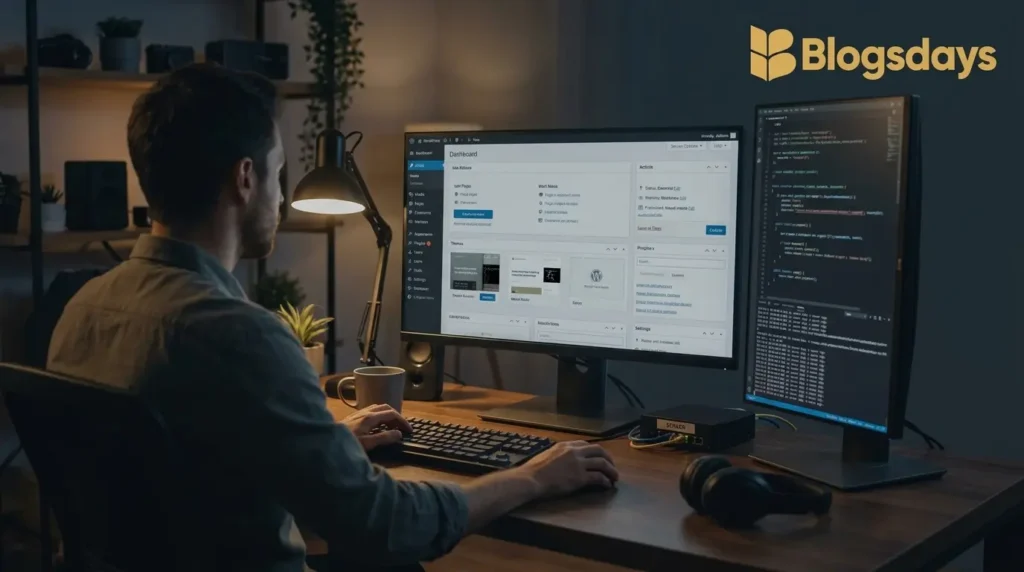
If you only want to see what working in WordPress feels like, you don’t have to choose either paid route yet.
Is WordPress Free?
The WordPress software is free and open source. A public self-hosted website normally brings other costs: hosting for the site and a domain name for its address. Some themes or plugins are paid, but buying them isn’t a condition of using WordPress.
WordPress.com has its own free and paid plans, with different features. “Free WordPress” can therefore mean free software, a free hosted plan, or a no-cost way to experiment. Those are not the same offer. Before paying, write down what your site must do and check which costs and plan limits apply to that job.
What Is WordPress And Its Good Fit for You?
WordPress is a sensible option if you want to publish regularly and change your site’s design or features as your needs grow. A writer can begin with posts and pages, then add a newsletter form or other functions later.
The trade-off is responsibility. On a self-hosted site, someone needs to keep WordPress, themes, and plugins updated, arrange backups, and deal with problems when components conflict. A managed host may handle some of that work, but you should check exactly what its plan includes. If you want a site with as few technical decisions as possible, compare that ongoing work before you commit.
Your Next Step: Try It or Start a Site
If you are still asking what is WordPress before buying a domain, start with WordPress Playground. Open WordPress Playground. It runs WordPress in a browser so you can explore the editor and dashboard without arranging hosting. Create a test post, add an image, and see where pages and themes live. Treat it as a place to learn, not your public website.
Ready to put a site online? Decide whether you want a hosted WordPress.com plan or a separate hosting provider for a self-hosted site. Then choose a domain, set up WordPress, and publish one useful page before worrying about extra plugins. You’ll understand the platform faster by making something small than by installing every tool you might someday need.